🗣️ How to...Nabla Echo
When using Nabla Echo during a video visit, the browser must allow Local Network Access so Nabla can connect to Echo on the computer and capture audio.
When do I need to allow Local Network Access?
Users will need to allow Local Network Access if:
Using Nabla Echo
The encounter is a video visit
User has not allowed this permission yet (or previously blocked it)
If this access is not allowed, the encounter cannot start and audio will not be captured.
Why does Nabla need this permission?
Nabla Echo runs locally on the computer to securely access audio from the video visit.
Modern browsers like Google Chrome, Firefox, and Microsoft Edge require approval before a website can communicate with local software. This is a standard security measure.
Option 1 (recommended): Allow it when the browser asks
This is the simplest and most common case.
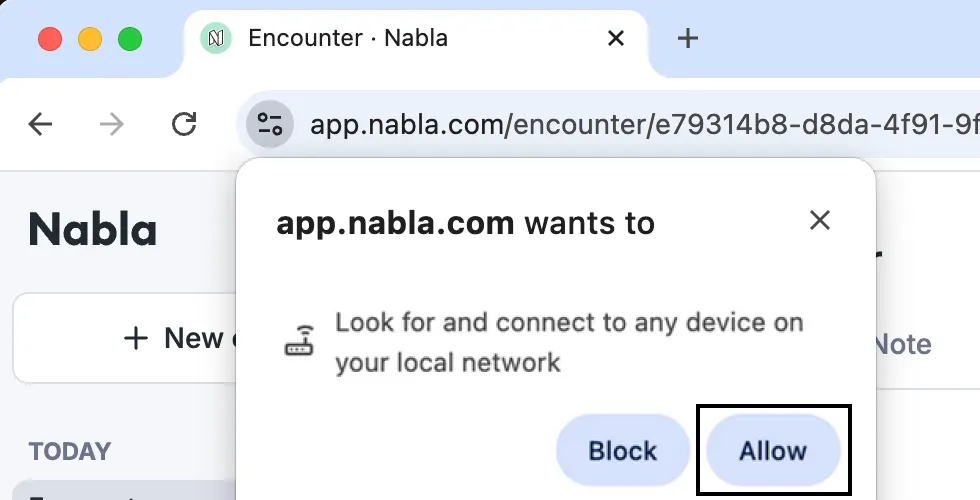
When starting a video encounter, the browser may show a pop-up asking to connect to devices on the local network.
When the prompt appears, click Allow. This will not be asked again.
Option 2: Allow it from site settings
Choose the browser below.
Google Chrome
Change the permission manually.
Open Nabla in browser
Look at the address bar
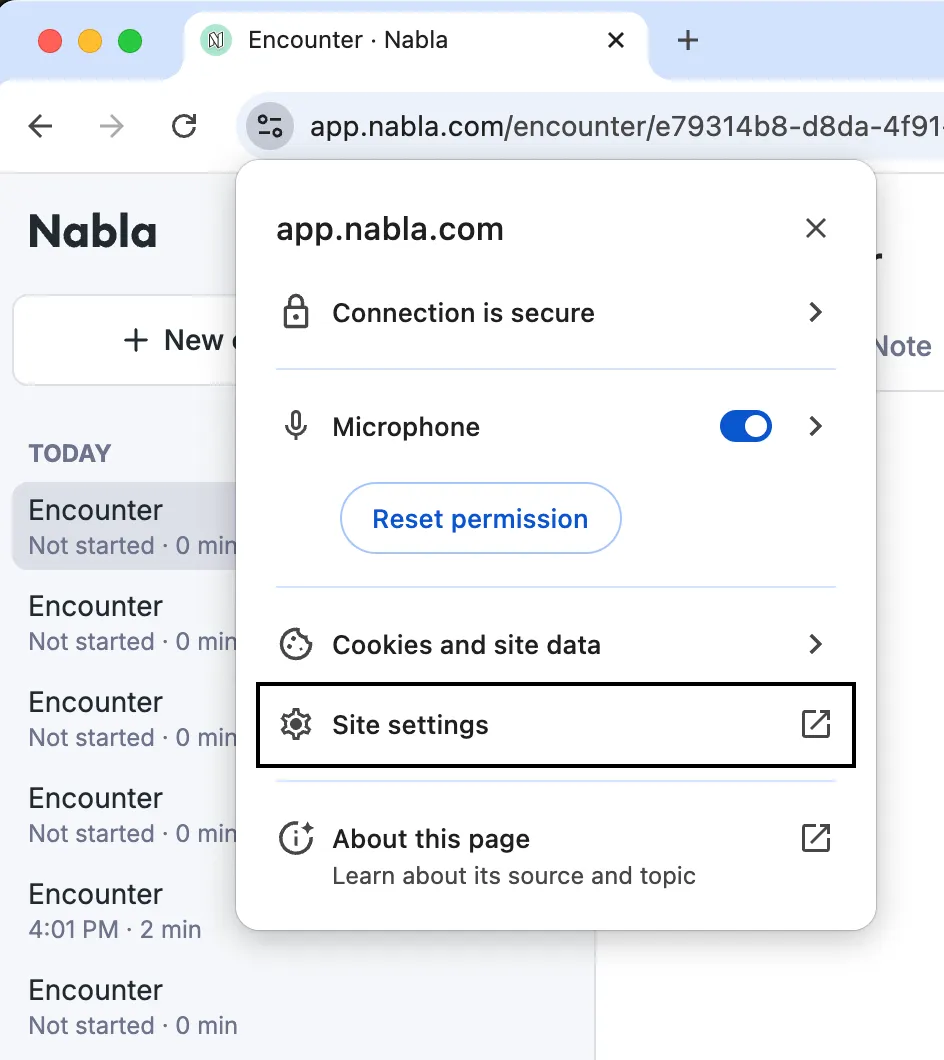
Click the padlock (🔒), microphone (🎙️), or tune icon
Go to Site settings
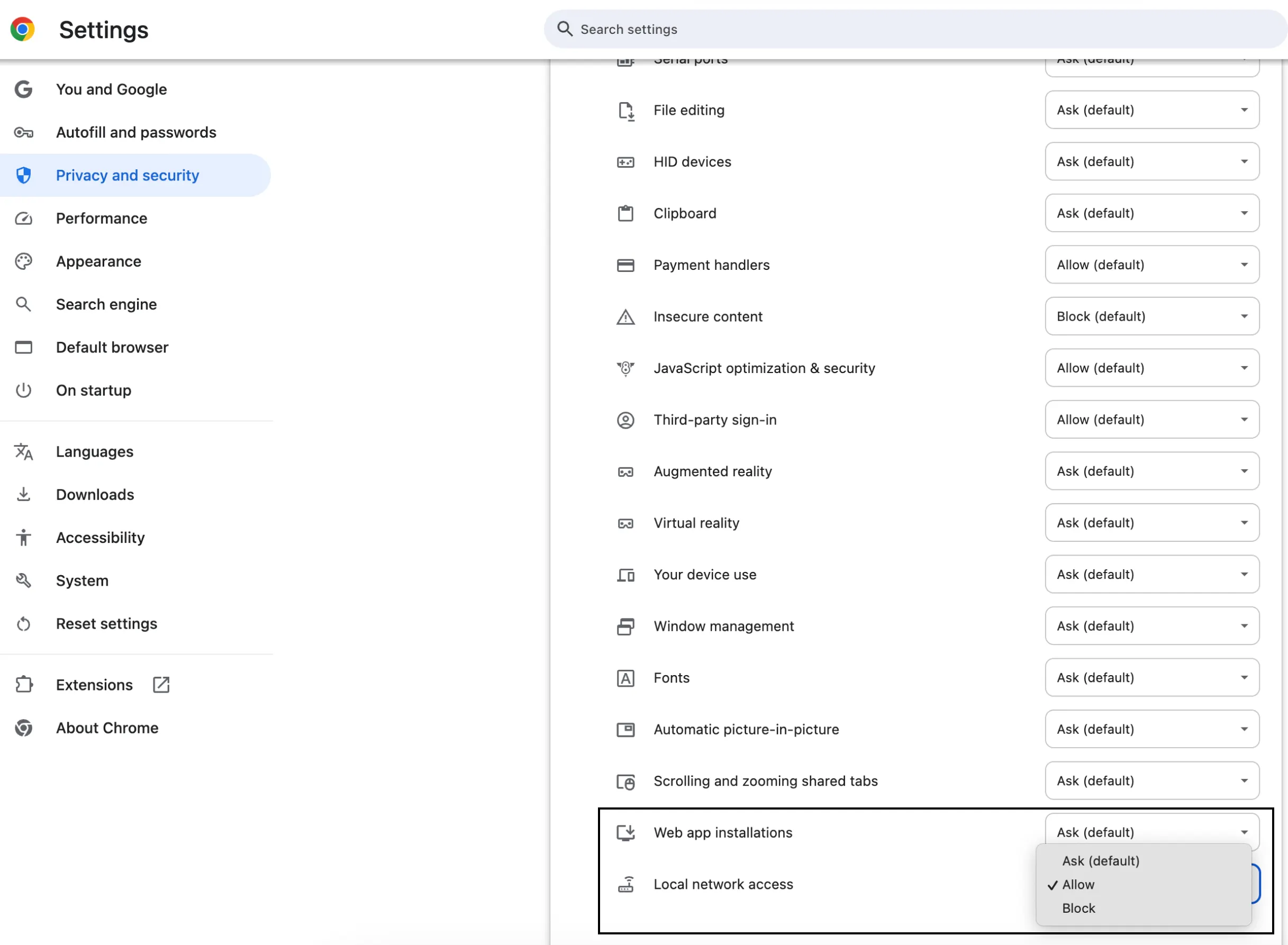
In Privacy and security, find Local network access
Change it to Allow
Refresh the page
Microsoft Edge
Edge manages this permission slightly differently.
👉 Follow Microsoft’s official guide at this link.
Mozilla Firefox
Firefox uses its own Local Network permission model.
👉 Follow Mozilla’s official guide at this link.
What happens after I allow it?
Users will not be prompted again
Click Start encounter
Nabla Echo works normally during video visits
Still not working?
Try these quick checks:
Refresh the Nabla page
Make sure Nabla Echo is installed and running
Fully close and reopen browser
If the issue continues, contact us at support@nabla.com