
E/M Coding: How It Works
Nabla now surfaces an E/M code suggestion directly within the encounter, based on the note Nabla generates. After the note is ready, an E/M tab appears on the encounter. It shows a suggested CPT or HCPCS code alongside a full Medical Decision Making (MDM) breakdown, the same framework a payer uses to evaluate a visit. You review it, adjust the context if needed, and copy the code to your EHR. Nothing is submitted automatically.
Who Can See This Feature
The E/M tab is available to providers in outpatient settings in the following specialties:
Family Medicine
General Medicine
Internal Medicine
Pediatrics
If your specialty is not listed above, or if you work in an inpatient setting, you will not see the E/M tab. In organizations with mixed specialties, only eligible providers see it.
How It Works
The E/M suggestion is based on what is in the note Nabla generated — nothing more. Information in your EHR that is not referenced in the note does not affect the suggestion. This mirrors the standard a payer auditor applies: only what is documented counts.
Workflow
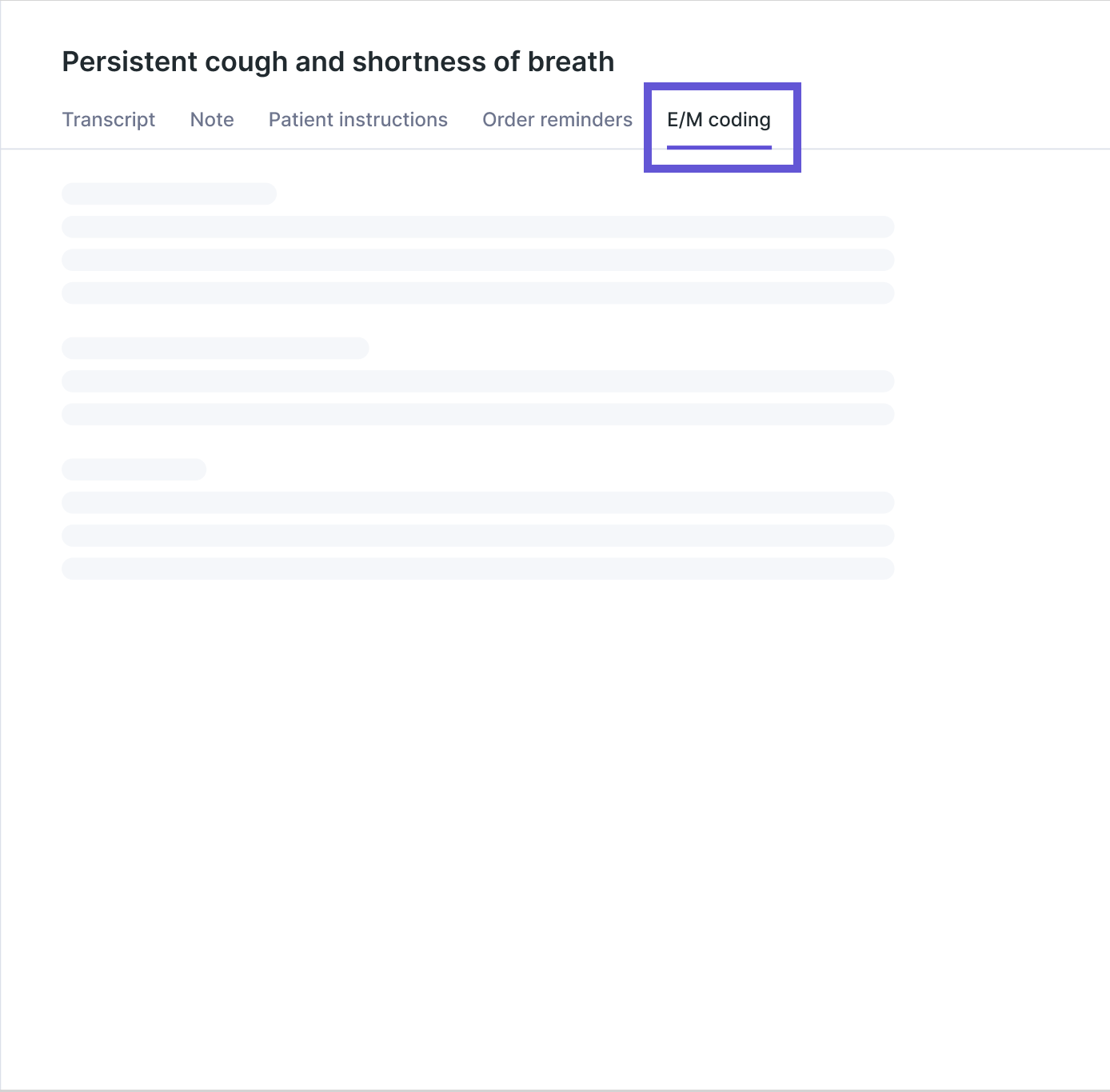
Step 1 — Open the E/M tab
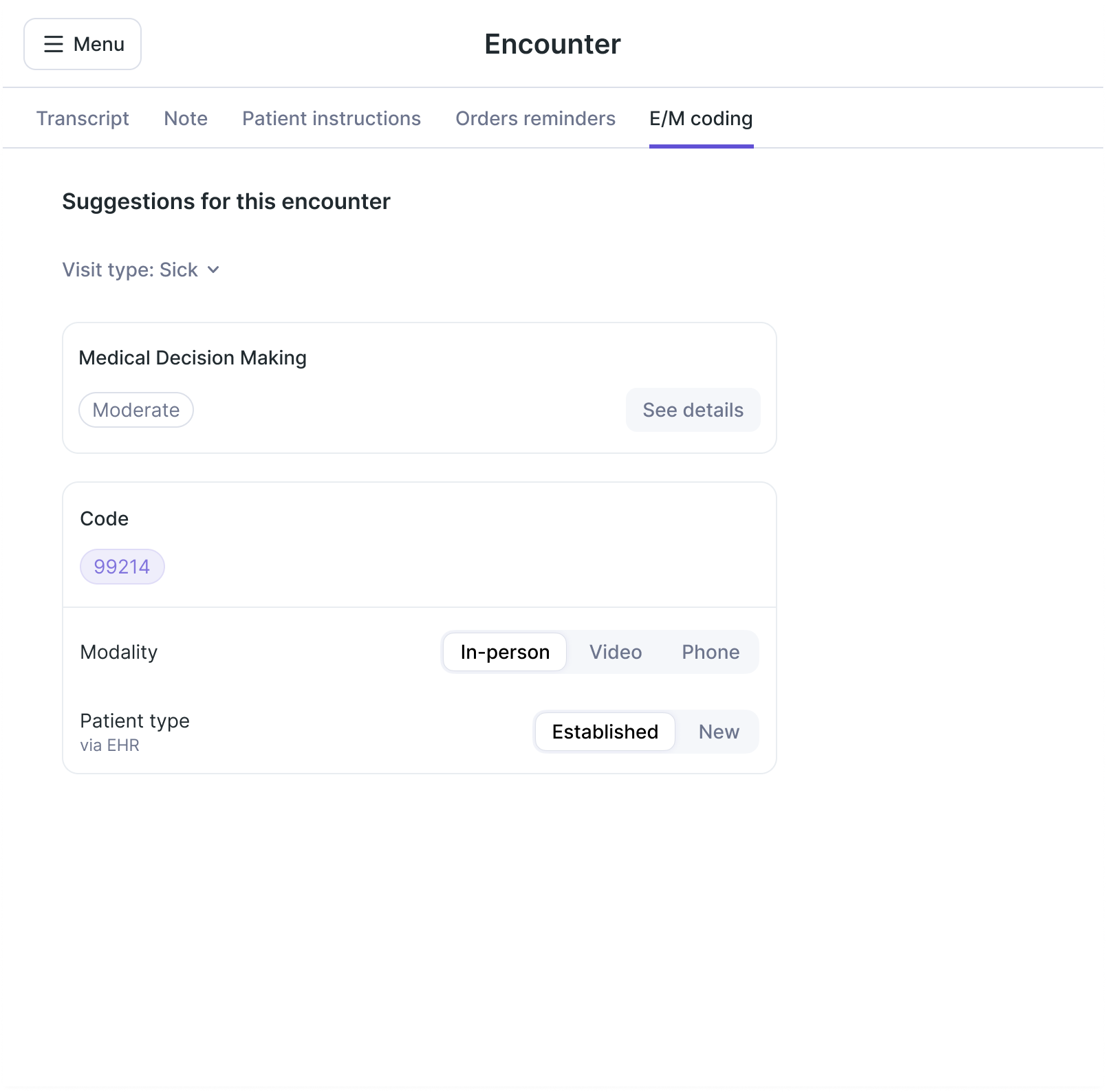
After the encounter note is generated, navigate to the E/M tab in the encounter. The tab displays the visit type, MDM level, suggested code, modality, and patient type.
Step 2 — Confirm visit type and context
The visit type, modality, and patient type are pre-filled from your EHR or inferred from the note. You can change any field — the code suggestion updates immediately.
Step 3 — Review the MDM breakdown
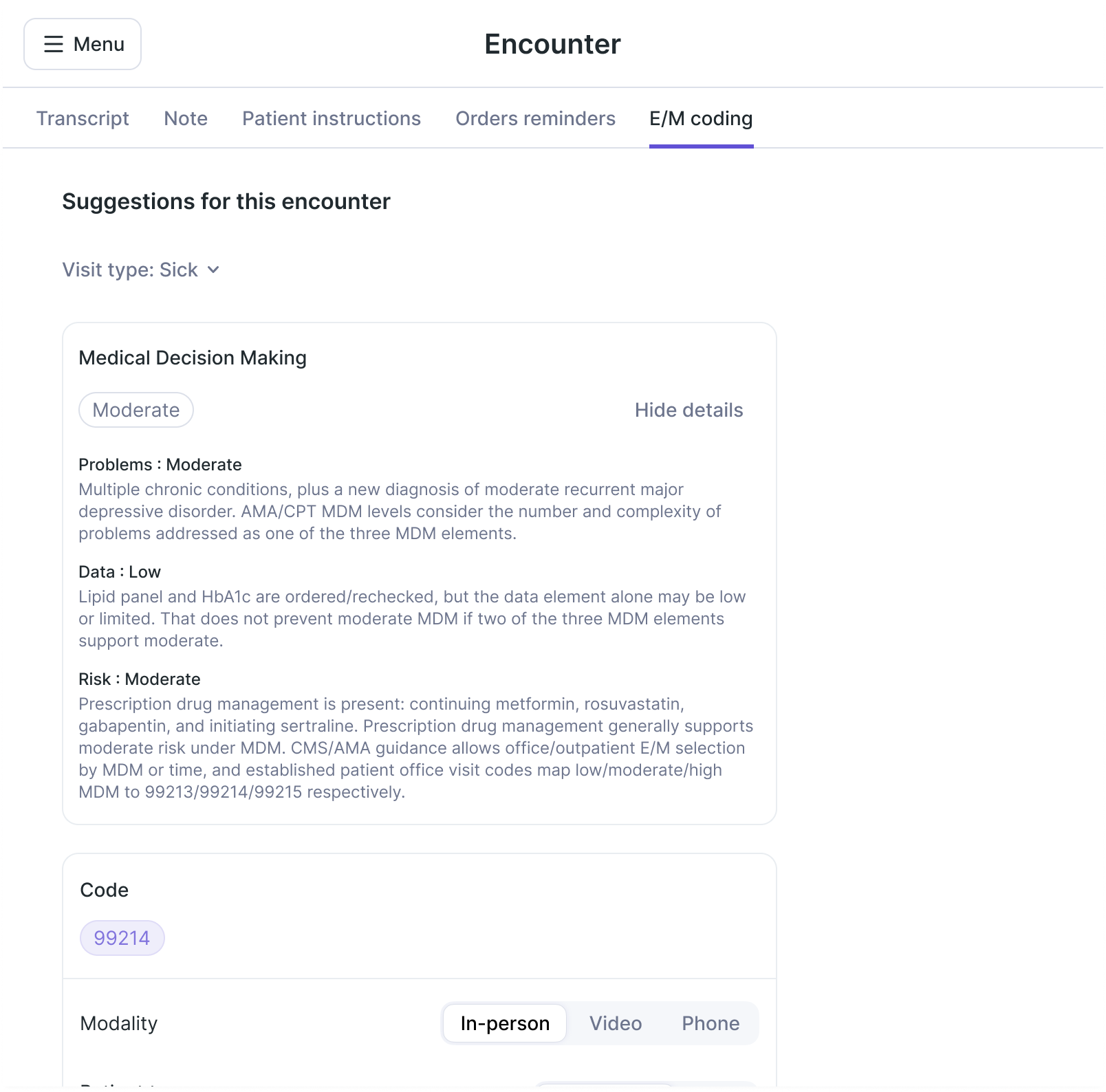
For sick visits, click See details to view the predicted MDM level across three categories: Problems Addressed, Data Reviewed and Analyzed, and Risk of Complications. Each category includes a plain-language explanation tied to applicable E/M coding criteria. The MDM level is read-only — it reflects what is documented in the note. If you believe the note should reflect a different level, update the note first, then refresh the suggestion from the E/M tab.
If the engine flags potential ambiguity, a confidence indicator will appear with a short explanation. This is a prompt to review the case more carefully — not an error. A code is still shown.
Step 4 — Copy the code to your EHR
The suggested CPT or HCPCS code appears as a copy-ready pill in the Codes card. Use the copy button and enter the code in your EHR as usual.
Important Considerations
Nothing is submitted automatically. The code enters your EHR only if you copy and enter it. The E/M tab is a decision-support tool. The suggestion is a starting point for your review, not an automatic determination.
Nabla codes from the generated note only. EHR information not referenced in the note will not affect the suggestion.
Time-based coding is not supported in this version. MDM-based coding only.
This feature is for outpatient encounters only. Inpatient providers will not see the E/M tab.